


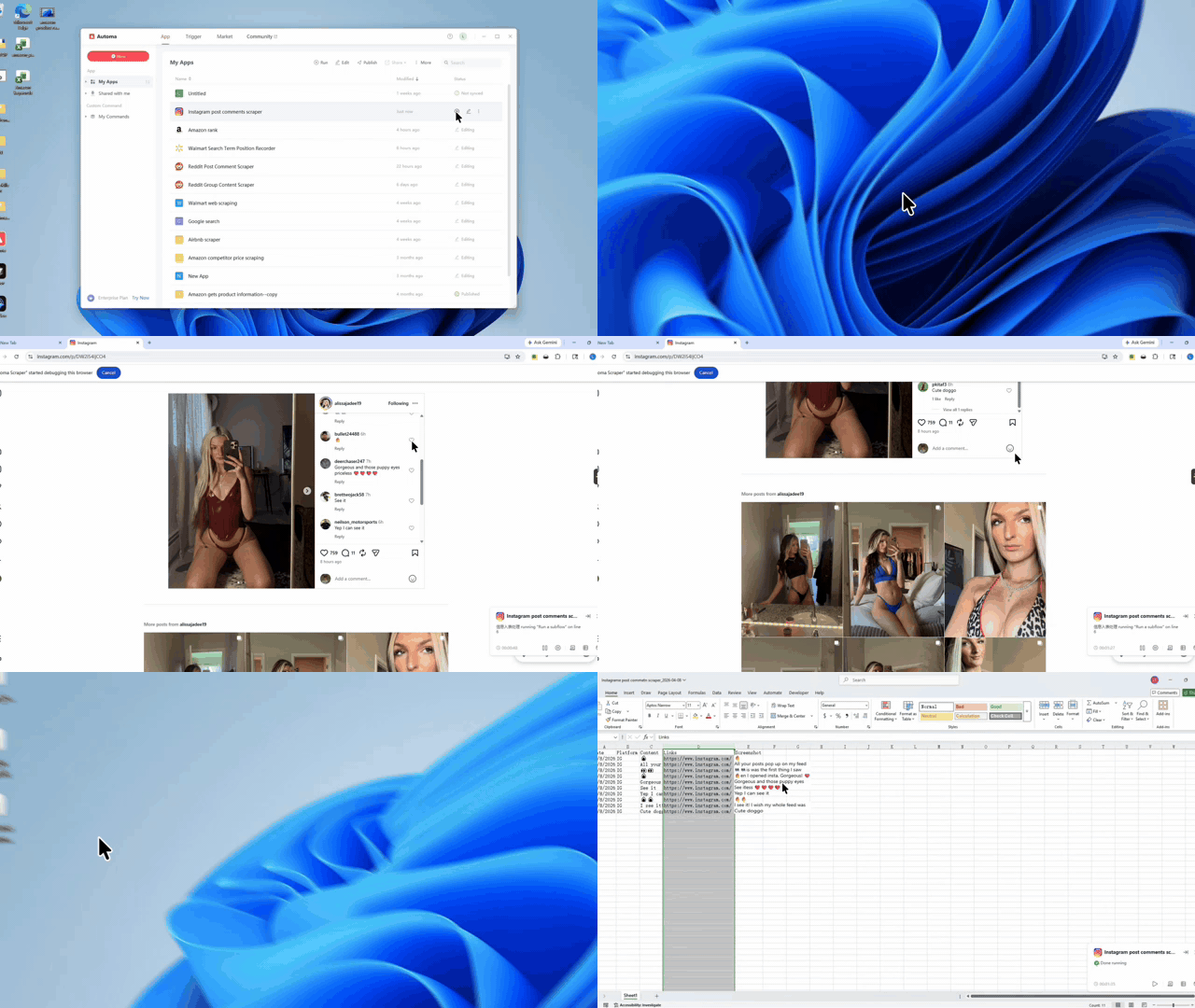
What problem this workflow solves?
Teams often need a simple way to review Instagram comments without reading each post by hand, copying text one comment at a time, or taking screenshots manually. This workflow solves that problem by turning Instagram post links into a structured comment collection process. Instead of jumping between browser tabs, screenshots, and spreadsheets, the user can run one workflow that gathers comment text, captures a visual record, and saves the results into an Excel file. That makes it easier to track public feedback, monitor engagement, and keep a working archive of what people said on a post.
This is especially useful when comment review needs to be repeatable. A manual process can miss messages, skip dates, or create messy files. Here, the workflow is built around Instagram comments, post links, screenshots, and Excel export, so the output is more organized from the start. The package also includes an optional comment translation step, which helps when teams need to understand feedback written in other languages. In plain terms, this workflow reduces repetitive work, improves consistency, and gives users a cleaner way to collect comment data for review.
- Reduces manual copying and screenshot work
- Organizes comment data in Excel
- Keeps a visual screenshot record of each comment
- Supports optional translation for easier reading
What does this workflow do?
This workflow opens a selected browser, reads a list of Instagram post links, visits each post, and collects available comment information. As it moves through the comments, it tries to expand hidden comment sections, reads the comment text, captures the publish date, and saves a screenshot of the comment content. The package then sends that collected data into an Excel file stored in the folder chosen by the user. If the translation option is enabled, the workflow also creates a Chinese translation of each comment before writing the final row into the spreadsheet.
The end result is more than just raw scraping. The workflow combines Instagram comments, screenshots, Excel export, and comment translation into one practical flow. Based on the package logic, each row includes core comment details such as date, platform, original text, link field, and screenshot placement, with a translation column added when that option is turned on. It also creates a dated Excel filename automatically, which helps users keep runs separated by day. Overall, the workflow acts like a comment collection assistant that turns post links into a readable, shareable report.
- Opens Chrome or Edge
- Reads Instagram post links from the input table
- Expands comments when possible
- Captures comment text and publish date
- Takes a screenshot for each collected comment
- Writes results into Excel
Who is this for?
This workflow is for people who need an easier way to collect and review Instagram comments at scale. That includes social media teams, marketing staff, community managers, customer support reviewers, brand monitoring teams, and researchers who want a structured record of public responses on Instagram posts. It can also help agencies that manage multiple campaigns and need to gather comments from several post links into one spreadsheet for reporting. Because the workflow writes everything into Excel export format and includes screenshots, it is useful for both quick checks and more formal review.
It is also a good fit for users who are not highly technical but still want automation. The package uses a dialog box for setup, so the user mainly chooses a browser, provides a save folder, enters post links, and decides whether comment translation is needed. That makes the workflow easier to run than building a collection process from scratch. Anyone who regularly handles Instagram comments, screenshots, and post links as part of moderation, feedback analysis, or campaign review could benefit from this package.
- Social media managers
- Marketing and campaign teams
- Community moderation teams
- Customer insight or research teams
- Agencies collecting comments for clients
How does it work?
The workflow starts with a configuration step. A custom dialog asks the user to choose a browser, provide the file storage path, enter the post links, and decide whether translation should be enabled. After that, the workflow validates the input. It checks that the list of links is not empty and confirms that the selected save folder exists. It also creates a dated Excel file if one is not already present. This setup stage prepares the workflow so the collection run has a place to store screenshots and spreadsheet results.
Next, the workflow opens the selected browser and begins processing each Instagram post link. It navigates to a post, looks for comment blocks using lazy loading, and attempts to open more comments where available. For each usable comment, it extracts the publish date, reads the comment text, and captures a screenshot image. The collected row is then passed into the Excel export stage. When comment translation is enabled, the package adds a translated version before writing the data. Finally, the screenshot is inserted into the Excel sheet, and the local image file is removed after use. This sequence connects Instagram comments, post links, screenshots, and Excel export into one complete process.
- Step 1: collect setup choices from the dialog
- Step 2: validate post links and save folder
- Step 3: create the Excel output file
- Step 4: open Instagram posts in the selected browser
- Step 5: collect comment text, date, and screenshots
- Step 6: optionally run comment translation
- Step 7: write results into Excel and embed the screenshot
The Environment Checklist
Before running this workflow, the environment should be ready for browser automation, file storage, and Excel handling. The workflow depends on a working application runtime, a browser session, and successful output file creation. To avoid common failures, users should confirm that the latest version of Automa has already been downloaded and installed, that both the web version and desktop client are logged into the same account, and that the application has been obtained successfully and launched before use. These checks matter because the workflow relies on the app environment to read post links, open Instagram pages, capture screenshots, and complete the Excel export flow.
It is also important to make sure the browser you pick is available on the machine, since the workflow allows Chrome or Edge. The selected save folder must already exist, or the run will stop. Because the workflow writes results into Excel and inserts screenshots into cells, the local office environment must also be working correctly. In addition, the optional comment translation path depends on an enabled paid service inside the package flow. A clean environment helps the Instagram comments, screenshots, and Excel export process run more smoothly.
- Latest version of Automa has been downloaded and installed
- The web version and desktop client are logged into the same account
- The application has been successfully obtained and launched
- Google Chrome or Microsoft Edge is installed and available
- A valid local save folder already exists
- Excel or a compatible office environment is working properly
- Instagram access is available in the chosen browser
- Optional comment translation is enabled only if that paid service is available
Input Mapping
The first input is the browser choice, stored as browser_mode, with Chrome and Edge shown in the setup dialog. The second input is a table-style field labeled “Video link,” but the package logic clearly uses this as the source of Instagram post links, not video links in a broader sense. Those links are read from the data table and saved into the global list used for collection. The third input is the save folder, stored as save_dir, which is used for temporary screenshots and the final Excel export file. The fourth input is the translation checkbox, which controls whether comment translation is added.
The output mapping is just as important. The workflow creates an Excel file with a date-based filename and writes comment records into rows. Without translation, the columns are Date, Platform, Original Text, Link, and Screenshot. With translation turned on, the columns become Date, Platform, Original Text, Translation, Link, and Screenshot. This means Instagram comments, screenshots, Excel export, and comment translation are all tied directly to the user’s setup inputs.
- Browser / browser_modeSelects Chrome or EdgeControls which browser opens the Instagram post links
- Post Links / data table inputRead from the workbook data areaUsed as the list of Instagram post links to process
- Save Folder / save_dirStores temporary screenshotsDefines where the Excel export file is created
- Translation Option / CheckBoxTurns comment translation on or offAdds a translation column when enabled
- Generated Output / file_path_commentCreates a dated Excel file automaticallyStores collected Instagram comments and screenshots
Need help customizing?
If you want to adjust how this workflow handles Instagram comments, post links, screenshots, or Excel export, support is available through the channels named in your requirement. Customization may include changing the spreadsheet layout, editing the screenshot placement, updating how comments are expanded, changing browser behavior, or adjusting the translation path. Since this package includes both visual flows and code modules, custom changes can affect more than one part of the workflow. That makes it helpful to request support with a clear note about what you want to change and what result you expect.
A good support request should mention the workflow name, the part you want to modify, and the exact behavior you need. For example, you might want different columns in the Excel export, a different screenshot size, or a new rule for handling post links. You should reach out through Discord or Feedback to get help customizing the package. Those channels are the right place to ask for changes, report issues, or request improvements tied to comment translation, screenshots, or the Excel output structure.