Say Goodbye to Repetitive Clicks
In the fast-paced world of digital content creation, 3D assets are in higher demand than ever. From game development to e-commerce, the need for high-quality 3D models is constant. However, the process of generating these assets can often feel like a bottleneck. We call it the "manual loop": opening the browser, uploading images or typing prompts, waiting for the render, and manually hitting the download button over and over again.
This repetitive cycle consumes valuable time that could otherwise be spent on actual design and innovation. What if you could turn this entire process into a single click? What if your computer could handle the waiting and downloading while you focus on the creative brief?
Today, we’re excited to show you how to build a hands-free 3D factory by combining Automa, an AI-driven RPA tool, with Tripo, the state-of-the-art AI 3D model generator. By the end of this guide, you will have a workflow that automatically opens Tripo, generates a 3D model, and downloads it to your device without lifting a finger.
The Digital Workforce Meets the 3D Alchemist
This integration brings together the best of robotic process automation (RPA) and generative AI. To understand why this combination is powerful, let’s look at the specific role each product plays in the workflow.
1.Automa: The Digital Workforce
Think of Automa as your browser's "hands and eyes." It is an AI-driven Robotic Process Automation (RPA) tool that handles repetitive tasks—navigating webpages, filling in text fields, and clicking buttons—exactly like a human would, but faster and without errors. In this workflow, Automa is responsible for orchestrating the entire process, from launching the browser to saving the final file on your desktop. It eliminates the need for human intervention during the generation phase.
2.Tripo: The 3D Alchemist
Tripo acts as the "magic engine" of this operation. As a leading AI 3D generation platform, Tripo specializes in transforming 2D inputs into high-fidelity, ready-to-use 3D models. Whether you feed it a text prompt or a single image, Tripo’s deep learning models instantly reconstruct geometry, texture, and lighting. In this specific integration, Tripo serves as the generation core, receiving inputs from Automa and outputting production-ready 3D assets (specifically leveraging the Image-to-3D and HD Model capabilities).
Together, these tools create a seamless pipeline: Automa handles the logistics, while Tripo handles the creation.
Step-by-Step: Building Your Automated 3D Pipeline
Ready to build your own automation? Follow these steps to set up your workflow in the Automa editor.
1. Configure the Workflow
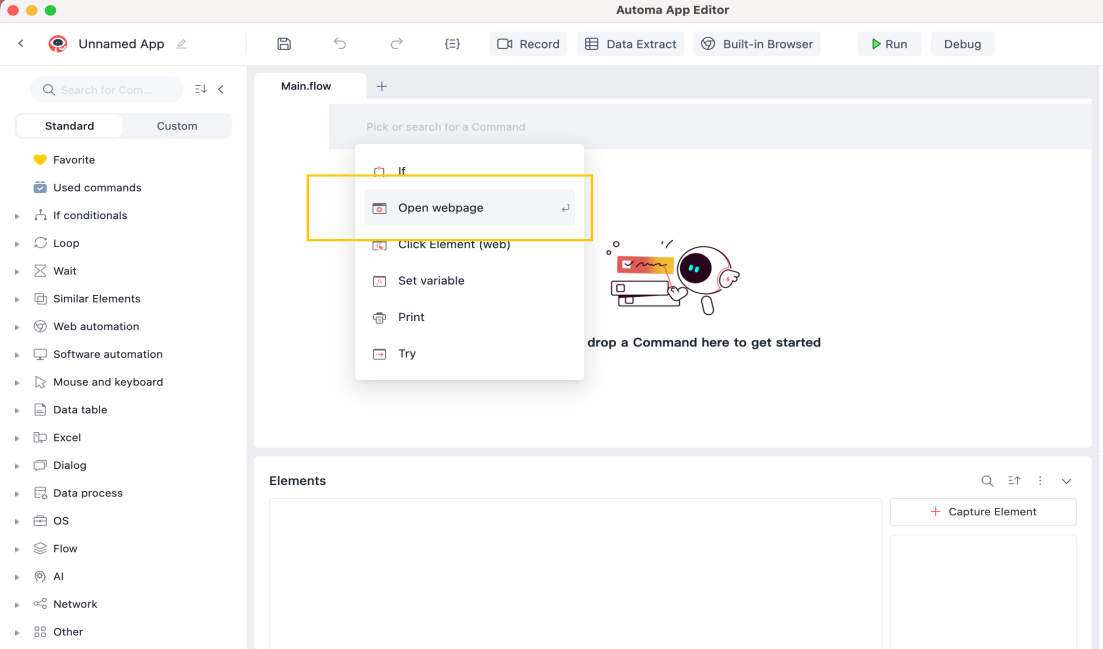
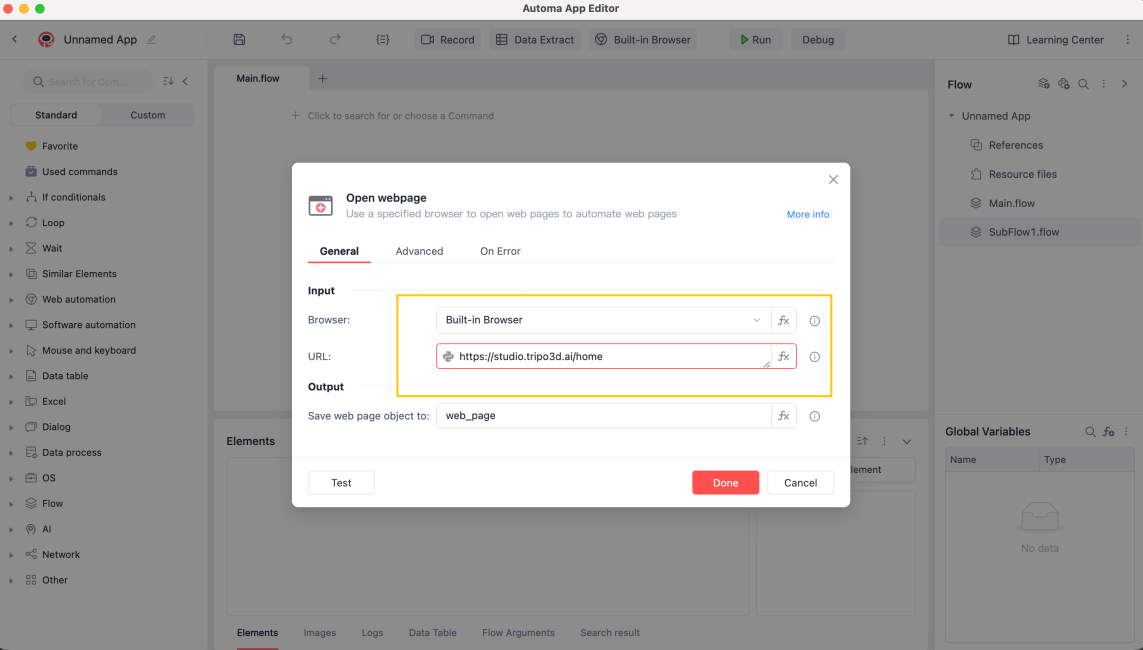
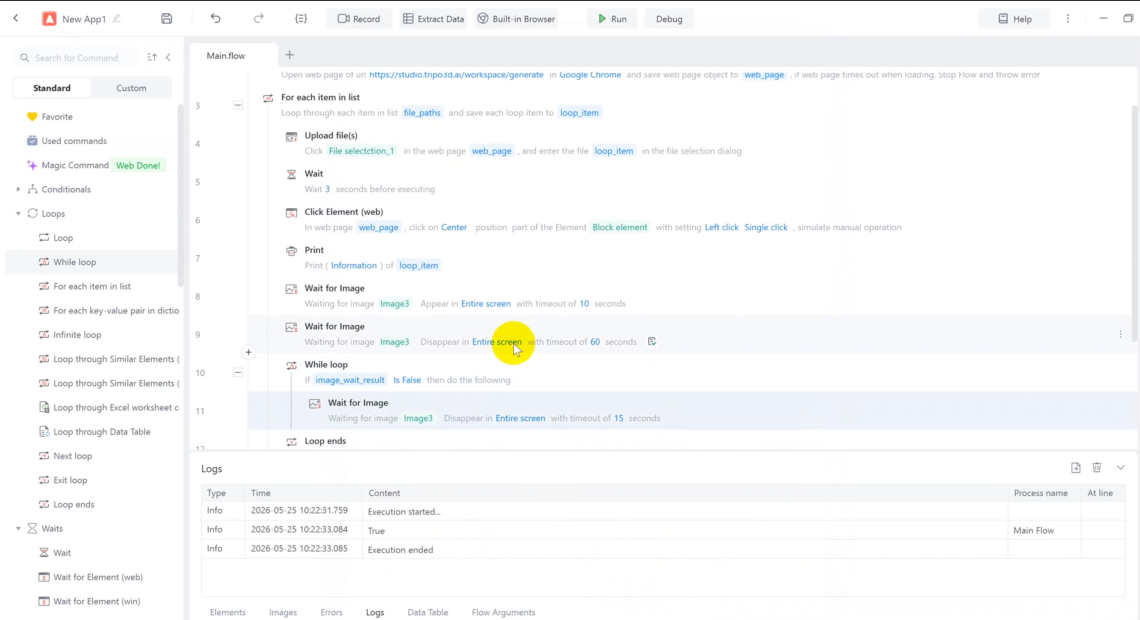
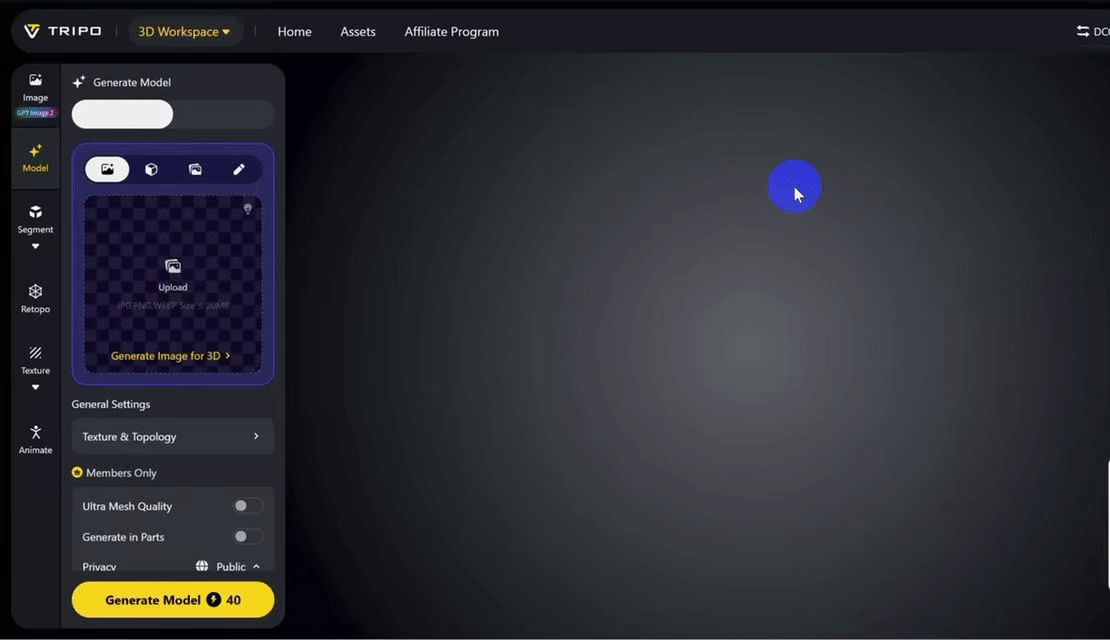
Using commands to launch the webpage and upload desktop files to Tripo Studio, this workflow simulates manual page operations with fewer than 20 commands in total.
2. Run and Witness the Magic
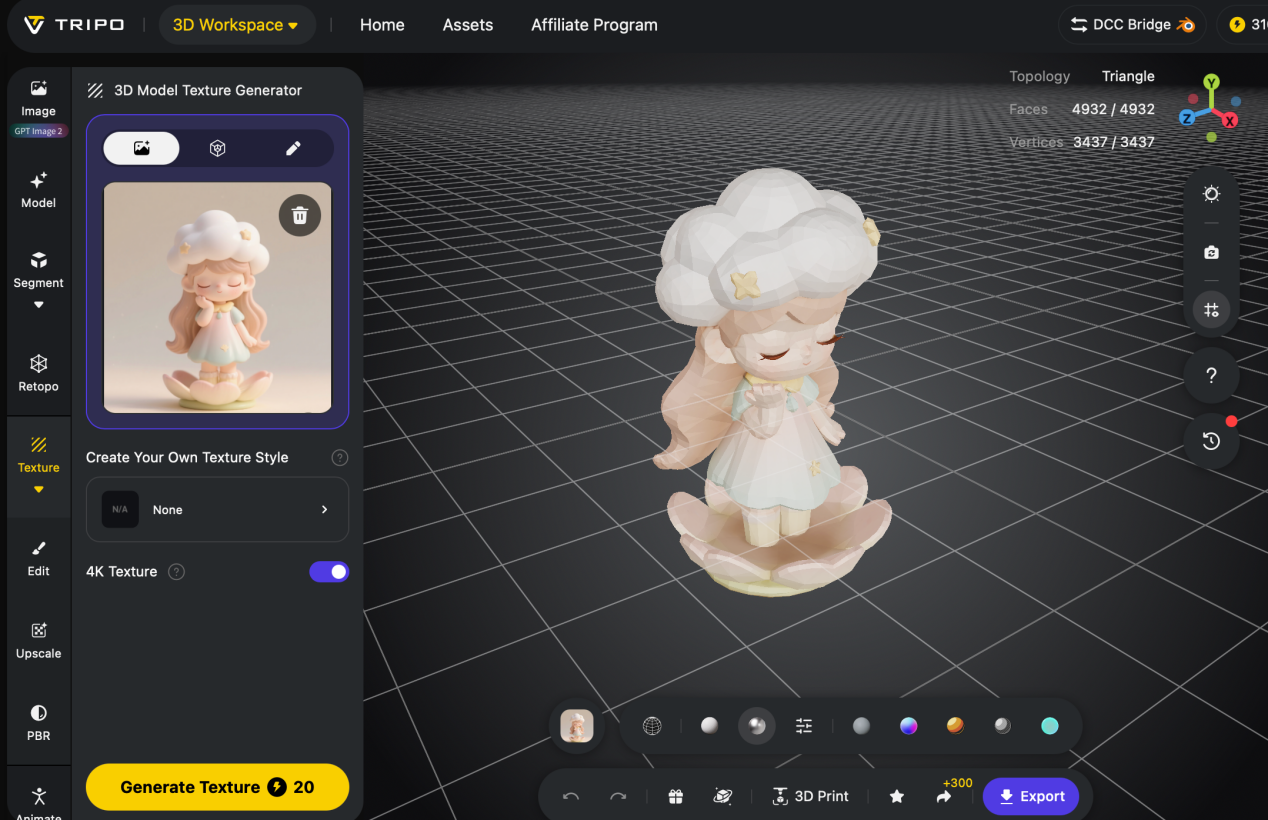
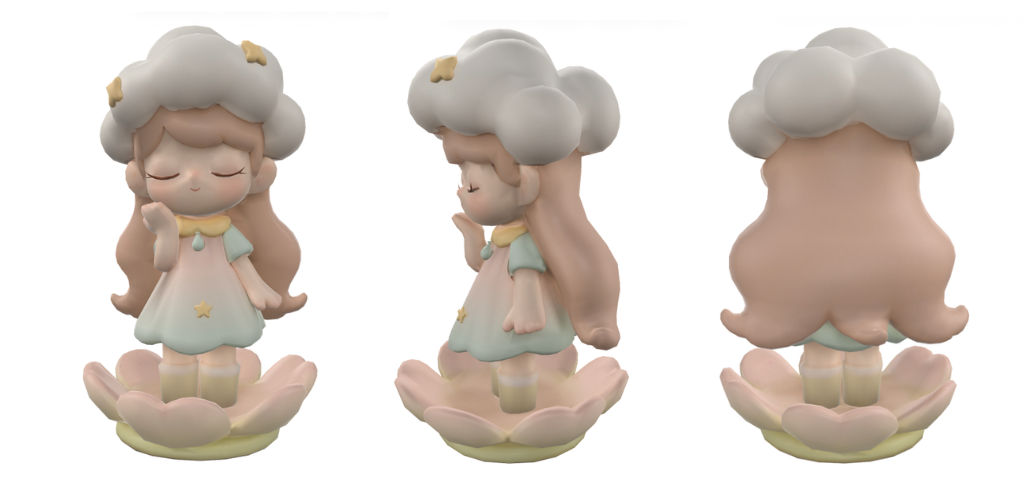
Click the ► Run button at the top of the Editor. You will see Automa automatically launch Tripo , update picture , trigger "Image to 3D Model", generate the model, and download the file for you
Use Cases and Benefits: Who Needs an Automated 3D Factory?
This Automa-Tripo integration is not just a technical novelty; it is a productivity multiplier for specific professional scenarios.
Game Developers & Asset Artists: Need hundreds of low-poly props for an open-world game? Set up a queue of concept art images and let automation generate them overnight. This is perfect for creating game assets at scale.
E-commerce & Product Visualization: If you are running an online store and need 3D models of physical products for AR try-ons or 360-degree views, this workflow allows you to batch-process product photos into 3D models without manual labor.
Rapid Prototyping: Designers can now iterate faster. Instead of waiting for a model to render while standing by the computer, you can trigger the generation and immediately move to the next design sketch.
The primary benefit is the liberation of human capital. By automating the "waiting game," creators can focus on refining prompts, curating outputs, and integrating assets into their final projects (such as Unity or Unreal Engine).
Best Practices for High-Quality Outputs
To ensure the automated pipeline produces the best possible results, we recommend following these tips for preparing your inputs:
Clear Subject Isolation: Ensure the main subject in your input image is clearly separated from the background. This helps Tripo accurately mask the object for 3D reconstruction.
Simple Backgrounds: Use plain or uncluttered backgrounds to avoid noise in the generated geometry.
Good Lighting: Well-lit images with clear shadows help Tripo infer depth and volume more accurately, resulting in a better HD Model.
Avoid Severe Occlusions: Make sure no part of the subject is heavily blocked or hidden, as the AI cannot generate geometry it cannot see.
High-Resolution Inputs: While Tripo can handle various resolutions, starting with high-quality images generally leads to higher fidelity textures in the final 3D model.
Conclusion: The Future of 3D is Automated
Congratulations — you have successfully created a simple Automa App for web automation! By integrating Automa with Tripo, you’ve just turned a multi-step manual task into a seamless, one-click operation.
Whether you are a game developer needing hundreds of props or designer prototyping ideas, this workflow frees you from the mundane so you can focus on what truly matters: creativity and innovation.