


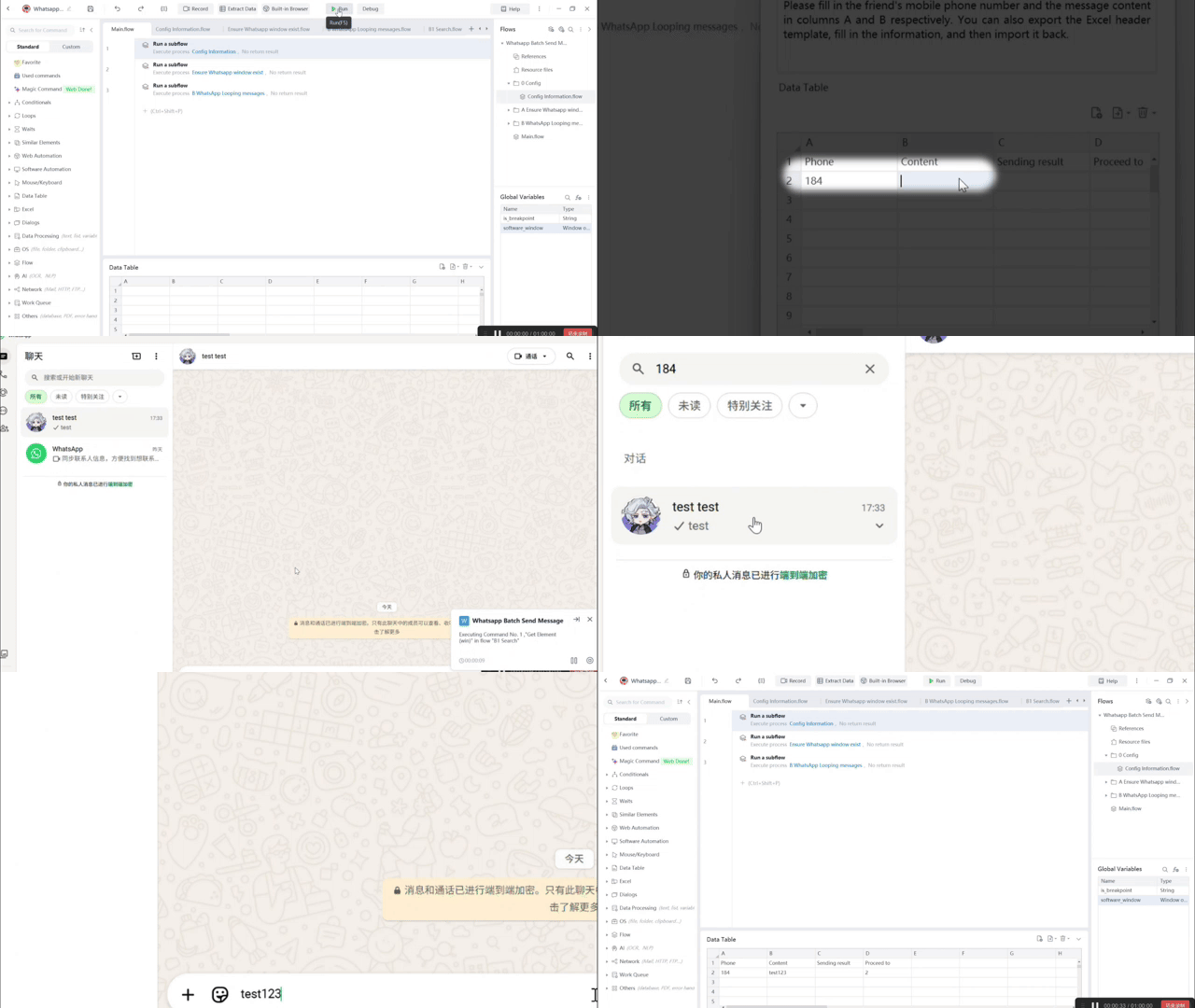
This workflow helps users send bulk WhatsApp messages through the WhatsApp desktop client from a simple recipient table. Each row provides a phone number or contact value and the message text, then the automation searches WhatsApp, opens the matching chat, sends the message, and records the result.
How can you prepare a list to send bulk WhatsApp messages?
Sending the same type of WhatsApp update to multiple contacts can become slow when every chat has to be opened by hand. This workflow keeps the process organized around a spreadsheet-style table, so the sender can prepare recipients and message text before the automation starts.
Column A holds the recipient phone number or contact search value, while column B holds the message content. Column C is reserved for the sending result, and column D stores the progress position used when continuing from a breakpoint.
This structure helps reduce repeated copy-and-paste work. It also supports a practical way to send WhatsApp messages from Excel-style data, because the list can be prepared outside the workflow and reviewed row by row before sending.
How does each row become a WhatsApp message?
After the recipient table is confirmed, the automation checks whether WhatsApp is open and logged in. If the WhatsApp window is not available, the user is prompted to open it before the run continues.
The workflow then loops through the recipient rows. For each row, it uses the phone or contact value to search inside WhatsApp. When a matching chat is found, the automation selects the conversation, places the row’s message content into the input box, sends it with the Enter key, waits briefly, and moves to the next row.
This is where the WhatsApp desktop automation removes the most repetitive work. Instead of searching for each contact, opening the chat, pasting the message, sending it, and returning to the list manually, the workflow performs those steps in sequence while keeping the original table as the source of truth.
What should be ready before running this workflow?
Before running the workflow, the latest version of Automa should be downloaded and installed successfully. The user also needs to be logged into the exact same account in both the web browser and the Automa client, so the client can access the template obtained from the web account.
WhatsApp also needs to be ready on the same machine. The desktop client should be installed or available, open, logged in, and visible before the sending loop begins. Because this workflow uses the visible WhatsApp interface, the contact values in the table should be searchable in WhatsApp.
The input table should be reviewed before execution. At minimum, each row needs a recipient value in the phone/contact column and message text in the content column. If those fields are incomplete, the run may skip the row or write a result indicating that the sending object could not be found.
How does the workflow track progress and results?
A batch messaging run is easier to manage when the sender can see progress and outcomes afterward. This workflow uses the Sending result column to record what happened for each row, and the Proceed to column to keep track of where the run should continue.
If the phone value is empty, the workflow writes a result and skips that row. If an error occurs while searching or sending, it records the exception, resets the WhatsApp environment, and continues with the batch logic.
The breakpoint option helps when a sending run is interrupted. Rather than starting again from the first contact, the workflow can continue from the saved row position. For a WhatsApp bulk sender, that makes longer lists easier to handle because the operator has a clearer view of what was already attempted and where to resume.
When is this workflow useful for prepared outreach?
This workflow fits prepared, list-based messaging tasks. It can support small marketing follow-ups, service reminders, delivery updates, appointment confirmations, event coordination, or internal contact checks. The sender keeps control over the contact list and message text, while the automation handles the repeated WhatsApp interface work.
It is not designed as a chatbot, CRM synchronization flow, or WhatsApp Business API campaign system. Its strength is direct WhatsApp message automation through the desktop client. That makes it useful for users who want a visible, table-driven process rather than a more technical API setup.
For recurring lists, the same structure can be reused with new rows. The phone column defines who receives the message, the content column defines what gets sent, and the result fields help the sender review the batch after it runs.
How can you customize the batch to send bulk WhatsApp messages?
The current table uses a direct phone-and-content mapping, but the same approach can be expanded. Additional fields such as name, company, order number, appointment time, or customer segment could be added before the final message is prepared.
For more controlled sending, a status column could mark which rows are ready. For more personalized messages, multiple fields could be combined into the content column before the run starts. For review-heavy processes, the result column can be checked after the batch to see which rows completed and which rows need attention.
This flexibility helps users send bulk WhatsApp messages while still keeping the batch understandable. The sender can inspect the table, adjust the message content, run the process, and review the results without losing sight of each recipient row.
Need a different workflow setup?
If you want this workflow adapted for another app, trigger, or field setup, share the request on the feedback page. For setup questions or workflow troubleshooting, join the Discord community.