
Have you ever experienced that moment of panic? You spent hours curating a client list, sent it to IT, and it bounced back with the error: "Invalid Format." Or perhaps you confidently opened a Shopify order export, only to find phone numbers converted into scientific notation (1.23E+10) and SKU leading zeros completely wiped out?
This isn't a lack of attention to detail on your part. It is a fundamental error in file format selection.
In the world of data processing, the choice between CSV vs Excel is not just about file extensions (.csv vs .xlsx). It is a battle between Human Readability and Machine Efficiency. For the "Data Ferrymen"—those constantly moving data between business units (Marketing, Finance) and technical systems (ERP, Databases)—choosing the wrong format means endless rework, data loss, or even critical business failures.
This guide strips away the surface-level differences. We will dissect the underlying logic, storage efficiency, and automation compatibility of both formats. We will solve the age-old problem of "Why Excel destroys my data" and show you how to handle them correctly in Automa workflows.
The Difference Between CSV and Excel Files
Most people assume CSV is just an "ugly, feature-poor" version of Excel. This is a dangerous misconception. To master the Difference between CSV and Excel, we need to dissect their anatomy like a surgeon.
The CSV File Format Structure
CSV (Comma Separated Values) is data in its "naked" form.
It has no decoration, no colors, no formulas, and no complex underlying logic. It is a Plain Text file. If you open a CSV file with Windows Notepad or macOS TextEdit, you see its true form: each row of data occupies one line, and columns are separated by commas.
Think of it as a sheet of paper with raw text.
The advantage of this structure is extreme universality. From 1970s mainframes to 2024’s advanced Python scripts, any program that can process text can read a CSV. It relies on no specific ecosystem and requires no paid software.
The Semicolon Variant While "Comma-Separated" is the standard (defined in IETF RFC 4180), many European countries (like Germany and France) use a comma as a decimal separator (e.g., 10,50 €). Consequently, their systems often use semicolons (;) to separate columns.
Quick Reference: Global Delimiter Standards
Region / Standard | Decimal Separator | Column Separator (Delimiter) | Example Data |
US / UK / China | Dot (.) | Comma (,) | 10.50, Item A |
Germany / France / Brazil | Comma (,) | Semicolon (;) | 10,50; Item A |
TSV Standard | Any | Tab (\t) | 10.50 Item A |
Tip: If your automation script fails on European data, check this delimiter table first.
The Excel File Format Features
In contrast, an Excel file (.xlsx) is a "fully furnished mansion."
Technically, a .xlsx file is actually a compressed archive (Zip). If you rename the extension to .zip and unzip it, you will find a collection of XML files. These XML files store not just data, but fonts, colors, cell merge states, complex Formulas, Macros (VBA), and charts.
Excel is designed for humans.
It is a Binary File, meaning you cannot read it with a text editor. You need a specialized interpreter (like Microsoft Excel or Google Sheets) to render the data. This complexity brings power, but also "baggage." When you only need to transfer raw data, using Excel is like using an 18-wheeler to deliver a single letter—slow, cumbersome, and prone to getting stuck in narrow system APIs.
The Security Trade-off: Macros & Malware
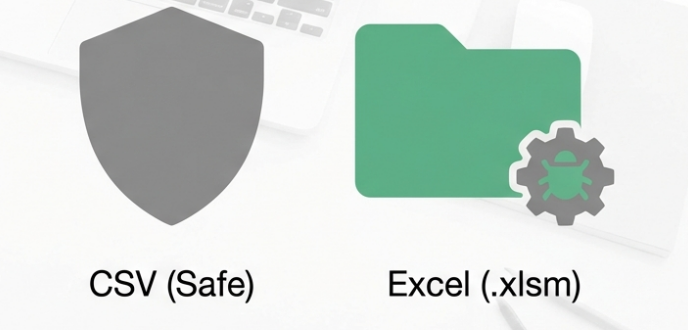
There is a critical security dimension often overlooked in basic comparisons. Because Excel supports VBA Macros, .xlsm (and older .xls) files are common vectors for malware and ransomware. A single malicious script hidden in a financial report can compromise an entire network.
CSV files are inert. Because they are plain text, they cannot execute code. For enterprise security compliance, transferring data via CSV eliminates the risk of macro-based attacks entirely.
Key Differences at a Glance
Feature | CSV (Comma Separated Values) | Excel (.xlsx) |
Nature | Plain Text | Binary XML Archive (Zip) |
Primary Audience | Machines, Databases, Programmers | Finance, Analysts, Management |
Formatting | None (No bold, colors, borders) | Rich (Charts, Conditional Formatting) |
Formula Support | None (Values only) | Core Feature |
Read Speed | Blazing Fast (Stream reading) | Slower (Requires rendering engine) |
Security | High (Cannot hide viruses) | Risk (Macros can carry malware) |
Comparing Data Storage and Performance Capabilities
When your data scales from hundreds of rows to hundreds of thousands, performance differences shift from theoretical to critical. Many tool selectors crash their automation stacks by ignoring this reality.
File Size and Memory Usage Analysis
Regarding File size, here is a counter-intuitive fact: On disk, XLSX is often smaller than CSV, but in RAM, CSV is always lighter.
Sound contradictory? Let’s break it down. Since .xlsx is a compressed archive, it has a high compression ratio for repetitive data. If your table has 1,000 "Pending" statuses, Excel stores the string once and references it via XML. CSV must write "Pending" 1,000 times.
However, once the file is opened or read by a script, the situation reverses.
When you read an Excel file with Python, the system must unzip it and parse the complex XML structure, consuming massive amounts of RAM. Reading a CSV is linear—it’s stream processing. You read a line, process a line, and discard it from memory.
Automa Lab: We tested a dataset containing 500,000 e-commerce orders.
Disk Footprint: CSV was 45MB. XLSX was 12MB (Compression win).
Memory Usage (Python Read): CSV consumed only 60MB RAM. XLSX spiked to 350MB+.
Handling Large Datasets and Row Limits
This is Excel’s most famous hard limit.
Since Excel 2007, the .xlsx file limit has been locked at 1,048,576 rows. For modern Big Data analytics, this is often insufficient. If you attempt to open a CSV with 2 million transaction records in Excel, it will truncate the data and issue a cold warning: "Data Lost."
CSV has no row limit.
The only limit is your hard drive space. You can easily create a CSV with 1 billion rows and process it via database import or Python scripts. For long-term historical archiving, CSV is the only viable option.

Processing Speed in Python and Data Tools
If your team is moving toward workflow automation or learning Python Pandas, the speed difference is exponential.
Parsing plain text is significantly faster than parsing XML structures. In automation, every second of latency accumulates into hours of lost productivity.
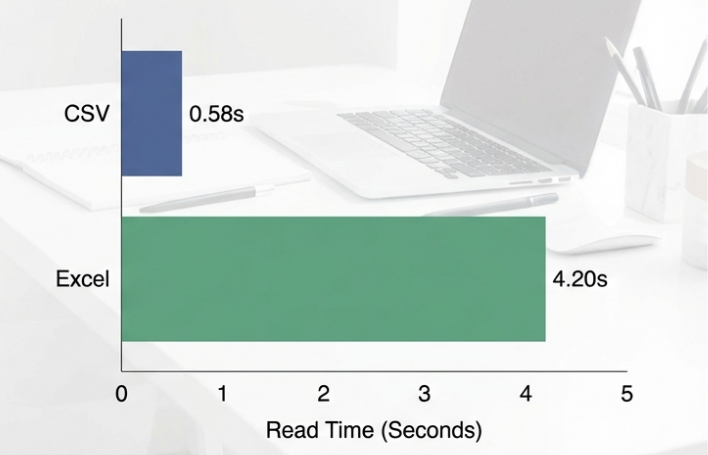
We ran a standard test using Python Pandas to read the aforementioned 500k rows. You can replicate our findings with the code below:
import pandas as pd
import time

# Benchmark: Reading CSV vs Excel (500k rows)
# ------------------------------------------------
# Test 1: CSV Read
start_csv = time.time()
df_csv = pd.read_csv('large_dataset.csv')
print(f"CSV Read Time: {time.time() - start_csv:.4f} seconds")

# Test 2: Excel Read
start_excel = time.time()
df_xlsx = pd.read_excel('large_dataset.xlsx')
print(f"Excel Read Time: {time.time() - start_excel:.4f} seconds")
The Results:
CSV Read Time: ~0.58 seconds.
Excel Read Time: ~4.20 seconds.
CSV is nearly 7x faster than Excel. This is why we recommend converting Excel inputs to CSV immediately upon ingestion. It’s not just about compatibility, it’s about making your automation fly.
Analyzing Formatting and Data Analysis Features
While CSV wins on transmission efficiency, Excel remains the king of presentation and deep analysis.
Visual Formatting and Presentation Options
Excel’s core value is Communication.
Through Formatting, you translate boring data into insight. You can mark losses in red, bold high-margin products, or use Conditional Formatting to create heat maps. These visual cues help the human brain capture priorities instantly.
CSV cannot do this. In a CSV, red and black are identical. Bold and italics do not exist. If you "Save As CSV" from a beautifully formatted Excel sheet, all colors, borders, and fonts vanish, leaving only cold text.
Why CSV Cannot Store Formulas or Charts?
A common beginner question: "I wrote formulas in my CSV, why are they static numbers when I reopen it?"
Reason: The CSV standard does not define syntax for "formulas." It only recognizes characters. When you save a CSV, Excel forces a calculation of all current formulas and writes the Result to the file, discarding the Formula itself. Similarly, CSV does not support Charts or Pivot Tables. If you need to preserve the "logic" of your analysis, use .xlsx or .pbix (Power BI).
The Hidden Dangers of Using CSV with Excel
Excel is CSV’s worst enemy.
It sounds ironic, but Excel is not a qualified CSV editor. It is too "smart"—it aggressively modifies your data without permission.
How Excel Corrupts Data When Opening CSV Files
When you double-click a CSV, Excel triggers its "Guessing Mechanism." It scans columns and converts them to what it thinks they should be. This data corruption is often irreversible.
The Three Classic "Excel Disasters":
Leading Zeros Vanish: Zip codes like
00123or Employee IDs like0105are interpreted as numbers. Excel strips the "useless" zeros, converting them to123and105. Systems will later reject these as "Invalid IDs."Scientific Notation Conversion: For numbers longer than 15 digits (Credit Cards, Long SKUs), Excel converts them to scientific notation (e.g.,
1.23E+15). If you save this file, Excel discards the precision beyond the 15th digit, replacing the tail with zeros. This is permanent data destruction.Date Format Chaos: Text that looks like a date (e.g.,
12-10representing a product model) is forcibly converted to a calendar date (10-Dec).
Note: Never double-click a CSV to edit it. If you must view a CSV in Excel, open a blank workbook, go to the Data tab, and use "From Text/CSV". This wizard allows you to force specific columns (like IDs/SKUs) to "Text" format, blocking Excel’s auto-conversion.

Solving Encoding and Special Character Issues
Another nightmare is "Mojibake" (garbled text).
CSV files usually use UTF-8 encoding (the internet standard). However, older Excel versions (especially on Windows) default to ANSI. When these mismatch, characters like Chinese, Japanese, or accents (é, ñ) turn into garbage symbols.
Solution:
Use code-aware editors (Notepad++, Sublime Text).
In the Excel Import Wizard, manually select
65001: Unicode (UTF-8)as the File Origin.Use Automa’s "Smart Data Parser," which automatically detects and fixes missing BOM headers.
Best Scenarios for Using CSV Files
The Developer’s Edge: Git & Version Control
One often-overlooked advantage of CSV is its compatibility with Version Control Systems like Git.
Because CSV is plain text, developers can use git diff to see exactly what changed between two versions of a file.
CSV Diff: Shows "Row 5 changed from 100 to 200."
Excel Diff: Shows "Binary file .xlsx has changed." (No details).
For teams managing configuration data or seed data in code repositories, CSV is the only format that allows for transparent collaboration and audit trails.
Transferring Data Between Different Systems
When moving data from System A to System B, CSV is the universal "Lingua Franca."
Whether it’s Shopify, Salesforce, Magento, or a legacy ERP, they might not support Excel uploads, but they always support CSV. Its Interoperability makes it the gold standard for Data Transfer.
Storing Historical Data for Long Term Archiving
Software becomes obsolete, text is eternal.
Excel formats have changed multiple times (.xls to .xlsx). There is no guarantee that software in 2040 will perfectly render today’s Excel files. But CSV, being plain text, will be readable as long as computers exist. For Data Archiving, CSV is the Future-proof choice.
Best Scenarios for Using Excel Files
Creating Financial Reports and Dashboards
You cannot hand a CSV to a CFO. Financial Modeling requires hierarchy, summary rows, bold headers, and red warnings. Excel’s Visualization capabilities make data readable, understandable, and actionable for decision-makers.
Collaborating with Non-Technical Team Members
If your recipient doesn't code, send Excel.
Excel provides a friendly User Interface. It allows users to filter via dropdowns and sort with clicks. For most business stakeholders, Excel is the only window through which they can understand data.
How to Choose the Right Format?
It’s time to decide. Use this decision matrix for your next project.
Decision Matrix
Question | Choose Excel | Choose CSV |
Who is reading this? | Humans (Boss, Client) | Machines (Database, API, Script) |
What must be saved? | Formulas, Charts, Colors | Raw Data Only |
Dataset Size? | < 1 Million Rows | > 1 Million Rows |
Security Requirement? | Low / Internal | High / No Macros Allowed |
Edit History? | Track Changes (Word-like) | Git / Version Control |
The Rule of Thumb: Store and Transmit with CSV. Analyze and Present with Excel.
Converting Between CSV and Excel Safely
Understanding the difference is step one. Step two is moving between them without losing data. Depending on your operating system, the "Safe Path" varies significantly.
Windows Users (The Power Query Method)
If you are on Windows, do not simply click "Save As." Follow this strict protocol to ensure zero data loss:
Open a Blank Workbook: Do not double-click your CSV. Open Excel first.
Import Data: Go to the Data tab and click From Text/CSV.
The Critical Step: In the preview window, locate your "ID" or "Phone Number" columns.
Force Text Format: Click Transform Data. In the Power Query Editor, select the sensitive columns and change their data type from "Whole Number" to "Text".
Load: Click "Close & Load." Now, when you save this as a CSV, your leading zeros and long numbers will remain intact.
macOS Users (The UTF-8 Trap)
Mac users face a unique challenge: Excel for Mac has multiple CSV export options, and choosing the wrong one will destroy special characters (accents, emojis, foreign languages).
The Wrong Way: If you select CSV (Comma delimited) (.csv), Excel for Mac often saves using an older Macintosh encoding. If you send this file to a Windows user, their accents (é, ü) will turn into random symbols.
The Right Way:
Click File > Save As.
In the File Format dropdown, scroll down carefully.
Select
CSV UTF-8 (Comma delimited) (.csv).Note: Do not confuse this with the standard "Comma Separated Values" option.
This ensures your file is universally readable on Windows, Linux, and Web Apps without encoding errors.
The Automated Approach (Recommended)
While manual methods work, they are slow and prone to human error. If you manage daily data pipelines, manual conversion is a bottleneck.
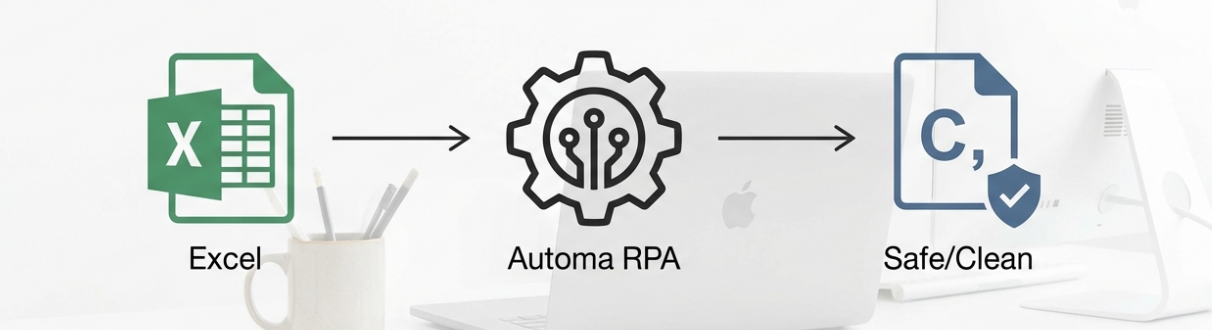
Automa’s intelligent workflows handle convert Excel to CSV tasks automatically. Our built-in "Anti-Corruption" protocols automatically detect potential ID columns and lock them as text before Excel can corrupt them. Let the tools handle the format, you focus on the value.
Common Error Codes
If your import/export is failing, match your error code to the solution below.
Error Code / Message | Context | Root Cause & Fix |
UnicodeDecodeError | Python / Pandas | Encoding Mismatch. The file is likely ANSI/Latin-1 but the script expects UTF-8. Fix: Open in Notepad, Save As > UTF-8 with BOM. |
SYLK: File format is not valid | Excel Opening CSV | The "ID" Bug. Your CSV starts with the characters "ID" (uppercase) as the first header. Excel thinks it's a SYLK file. Fix: Rename the first header to "id" (lowercase) or "Ref_ID". |
1.23E+10 | Excel Display | Scientific Notation. Excel treated a long number as a value. Fix: Change cell format to "Number" (0 decimals) or re-import column as Text. |
Data Truncated | Excel Import | Row Limit Exceeded. Your file has >1,048,576 rows. Fix: Use Python, SQL, or split the CSV into multiple files. |
Conclusion
Choosing between CSV and Excel is a strategic balance: use CSV for machine-speed data transfer and Excel for human-centric analysis. To avoid "data disasters" like stripped zeros or garbled text caused by manual handling, professional workflows require automation. Automa RPA bridges this gap, offering high-speed, corruption-free file processing that protects your data integrity automatically. Stop wasting hours on manual formatting and "Saving As". Download Automa RPA now to experience seamless, professional-grade automation.
FAQ
Can CSV files store formulas?
No. CSV is plain text and only stores values. When saving Excel to CSV, formulas are calculated, and only the results are saved.
Why do phone numbers turn into 1.23E+10 in Excel?
This is Excel’s auto-formatting. It misinterprets long numeric strings as scientific notation. Always use the "Get Data > From Text/CSV" wizard to import these columns as "Text."
Which is faster for Python processing?
CSV is significantly faster. We show Python Pandas reads CSVs 5-7x faster than Excel files due to lower overhead and stream processing.
How do I fix "Mojibake" (Garbled Text) in CSV?
This is usually a UTF-8 vs. ANSI encoding mismatch. Open the file in Notepad, "Save As," and select "UTF-8 with BOM." In Excel, select 65001: Unicode (UTF-8) during import.
Is CSV safer than Excel?
Yes. CSV files are plain text and cannot contain executable code like Macros, making them immune to the macro viruses that often plague .xlsm files.