


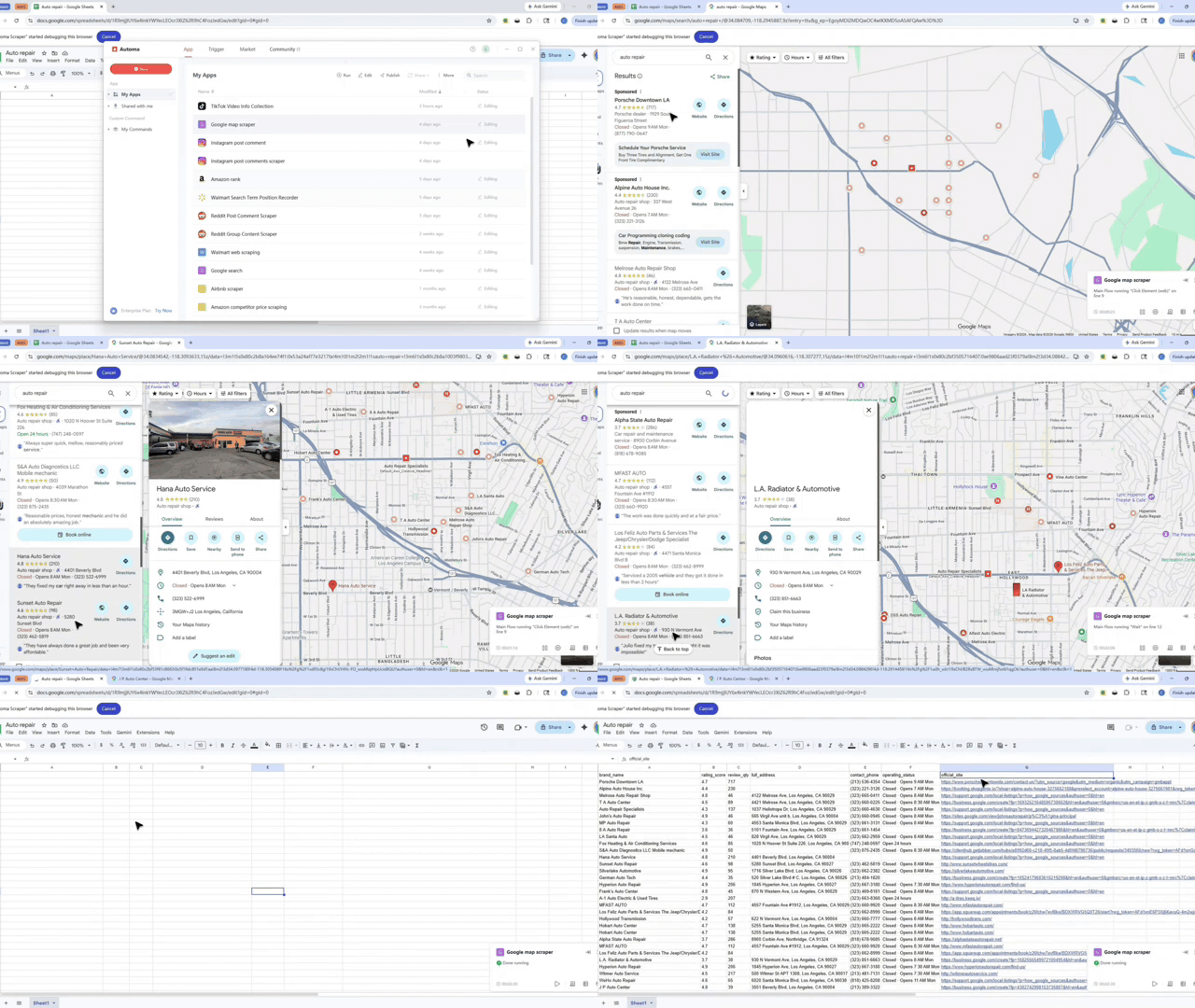
What problem this workflow solves?
Finding business leads on Google Maps by hand takes a long time. You have to search, click, and copy data into a sheet over and over. This workflow fixes that. It searches and saves business info for you automatically. You no longer need to waste hours on manual data entry or worry about making mistakes.
Key Benefits:
- Save time: Stop copying and pasting data one by one.
- Fix errors: The system captures accurate data every time.
- Work faster: Collect hundreds of leads while you do other tasks.
What does this workflow do?
This tool opens Google Maps and finds business details for you. It collects names, phone numbers, addresses, and ratings. It then puts all this information into a neat list. You get a clean file that is ready for your sales or research team.
Core Functions:
- Auto-search: It types your keywords into Google Maps.
- Bulk extraction: It grabs data from many listings at once.
- Data organizing: It turns messy web pages into a clean table.
Who is this for?
This is for sales teams and marketers who need to find local customers. It is also helpful for researchers who study business trends. Even if you do not know how to code, you can use this tool to gather data quickly.
Typical Users:
- Sales Teams: People who need phone numbers and addresses for outreach.
- Marketers: Those building lists of local businesses.
- Agencies: Teams that collect data for different clients.
How does it work?
The workflow follows a simple plan. First, you tell it what to search for. Next, the tool opens the browser and finds the businesses. It looks at each result and saves the details. Finally, it gives you a finished data file.
- Input keywords: You type in the business type and location.
- Run search: The tool navigates Google Maps automatically.
- Save data: The tool scrapes details from each listing.
The Environment Checklist
Check these items before you start. This ensures the workflow runs without stopping.
- Update Automa: Make sure you have the newest version.
- Account Sync: Log into your account on the web and the app.
- Check Browser: Ensure your browser allows automation.
- Stable Internet: Use a steady connection for best results.
Input Mapping
You control what the tool finds by giving it a few simple details. These inputs tell the scraper exactly where to look and what to collect.
- Keywords: Use terms like "restaurants" or "gyms."
- Location: Tell the tool which city or area to scan.
- Result Count: Choose how many businesses you want to find.
Need help customizing?
You can change this workflow to fit your specific needs. If you want to collect more data or change the file format, help is ready.