


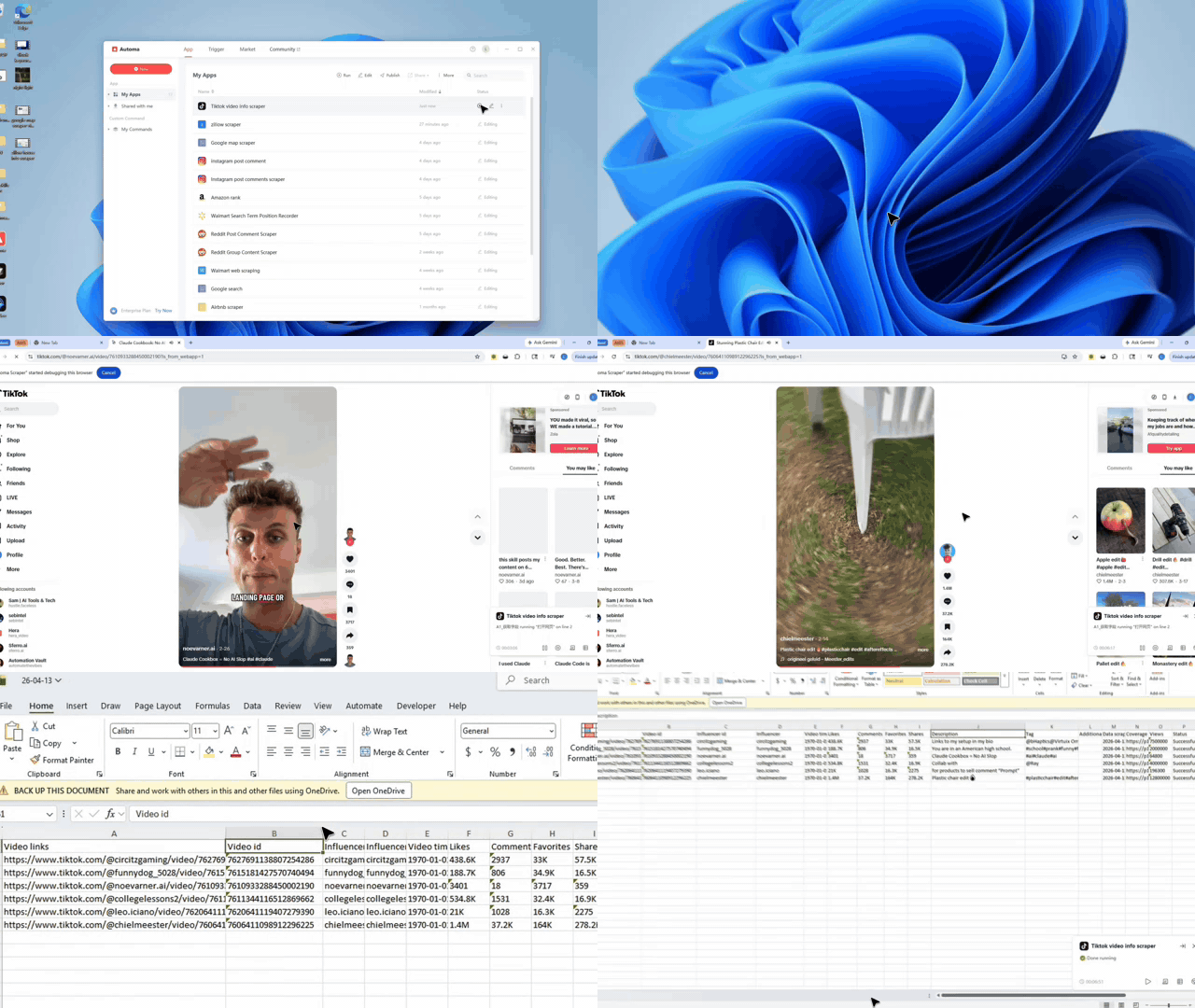
What problem this workflow solves?
Copying TikTok data by hand is slow and boring. You might make mistakes when checking many links one by one. This tool fixes that problem. It takes your list of video links and finds the data for you. It puts everything into one clean table so you do not have to copy and paste.
Key Benefits::
- Stop manual work: The tool visits every link so you do not have to.
- Collect more data: It grabs likes, comments, and play counts automatically.
- Stay organized: All your results save to one spreadsheet.
What does this workflow do?
This tool visits a list of TikTok links and saves the details into a table. It finds the creator's name, the video description, and how people interact with the post. It can even tell you when the video was posted. Finally, it saves all this info into an Excel file on your computer.
Main Actions:
- Read links: It looks at the list of videos you provide.
- Open pages: The tool opens the videos in Chrome or Edge.
- Extract stats: It pulls numbers for likes, shares, and views.
- Export files: It writes the data into a structured workbook.
Who is this for?
This tool is for marketing teams and people who study social media trends. It helps anyone who needs to check many TikTok videos at once. You do not need to know how to code to use it. Just paste your links and choose your settings to get your data.
Typical Users:
- Marketing Teams: People tracking how well their videos are doing.
- Researchers: Teams looking for new creators or trending topics.
- Operations Staff: Anyone who handles large lists of social media links.
How does it work?
The workflow follows a simple plan. First, you give the tool your list of links. Then, it opens each video page to look for data. It reads the numbers on the screen and saves them to a table. Once it finishes the list, it saves the file to the folder you chose.
- Setup: You enter your links and choose your browser.
- Loop: The tool visits each TikTok link one by one.
- Scrape: It finds the likes, comments, and play counts.
- Save: The tool writes the final results into an Excel sheet.
The Environment Checklist
Check these items before you start. This ensures the tool runs fast and without errors.
- Update Automa: Use the latest version of the application.
- Log in: Sign into your account on the web and the app.
- Prepare Links: Have your TikTok video links ready to paste.
- Pick a Folder: Choose where you want to save your Excel file.
Input Mapping
This workflow supports two input paths. The first path is the manual dialog. In that mode, the user selects a browser type, chooses a file save address, enters a custom file name, and fills in the TikTok video links to be crawled through the data grid. This is the easiest option for a hands-on run inside Automa.
The second path is trigger mode, where the workflow accepts a JSON-serialized string. The package instruction includes the expected structure, and the code confirms how it is read. The Bot looks for urls, browser_mode, save_file_path, and save_file_name, then writes the links into the workbook and continues the TikTok video information flow from there.
Here is the practical mapping:
- urls: a list of TikTok video links to collect.
- browser_mode: the browser type used to open each link.
- save_file_path: the folder where the exported spreadsheet should be saved.
- save_file_name: the exported file name.
- The output table maps to these workbook columns:
- A: Video link
- B: Video ID
- C: Creator ID
- D: Creator name
- E: Video publish time
- F: Likes
- G: Comments
- H: Favorites
- I: Shares
- J: Video description
- K: Video tags
- L: Extra video labels
- M: Data collection time
- N: Cover image link
- O: Play count
- P: Write-back status
- This mapping makes the workflow easy to understand, audit, and reuse.
Need help customizing?
You can change how the tool saves files or which data it collects. If you need a new feature, you can ask for help from the community.
- Discord: Join the group to talk with other users.
- Feedback: Use the feedback button to report any bugs.
- Customization: Ask a developer to help you add new data fields.